Calls
Audio, video, and screen-share calls over WebRTC. Connect with someone first — see Chat.
1. Open the Call tab
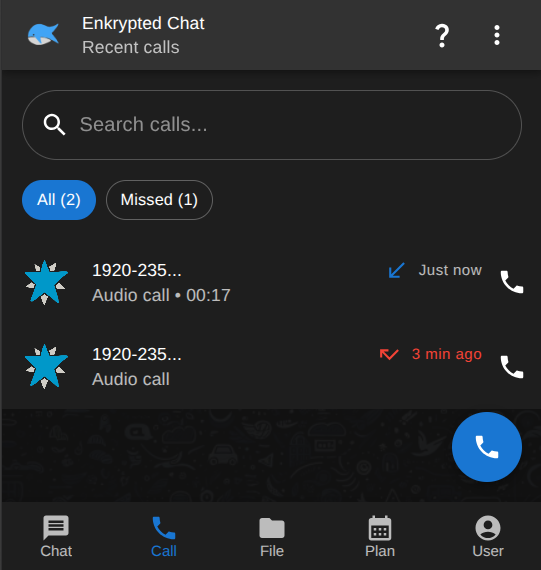
Tap Call in the bottom navigation to see your recent calls.
- Search with Search calls...
- Filter with All or Missed
2. Start or return a call
- Tap the blue phone button (bottom right) to start a new call.
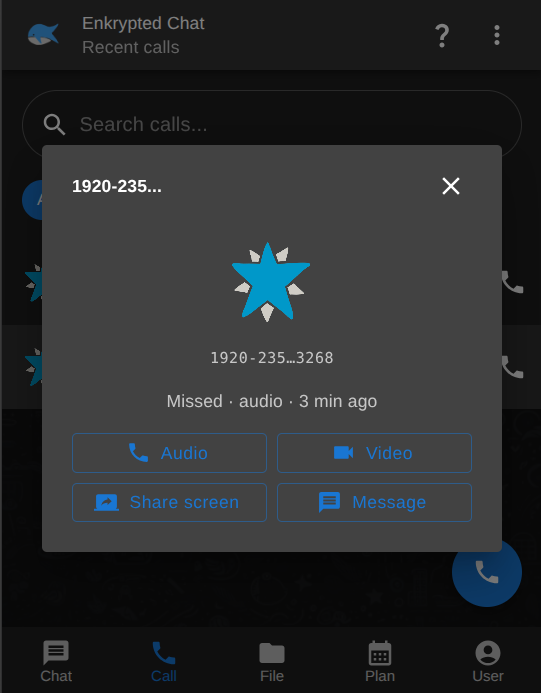
- Tap a recent entry to open call options for that contact.
You can also start a call from an open chat using the voice or video icons in the chat header — see Chat.
3. Choose a call type
When you select a contact, pick how you want to connect:
- Audio — voice-only call
- Video — camera and microphone
- Share screen — share your screen with the other person
- Message — jump back to the chat thread
4. During a call
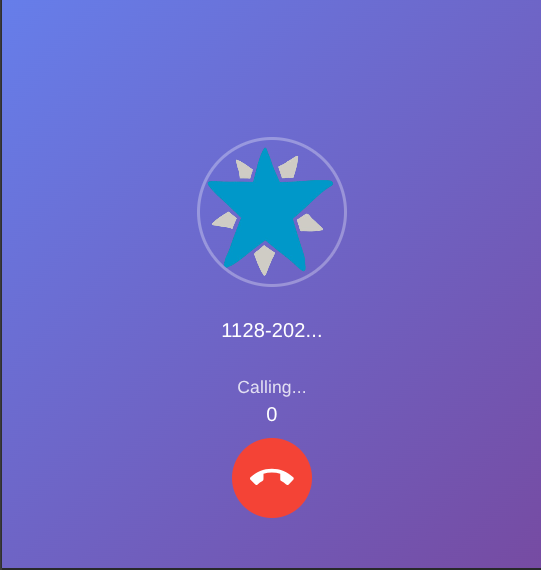
While a call is active, you see the contact and call status (for example Calling...). Tap the red end call button to hang up.
Calls use the same peer-to-peer WebRTC path as chat. Allow camera and microphone when prompted — covered in Chat — Open the app.