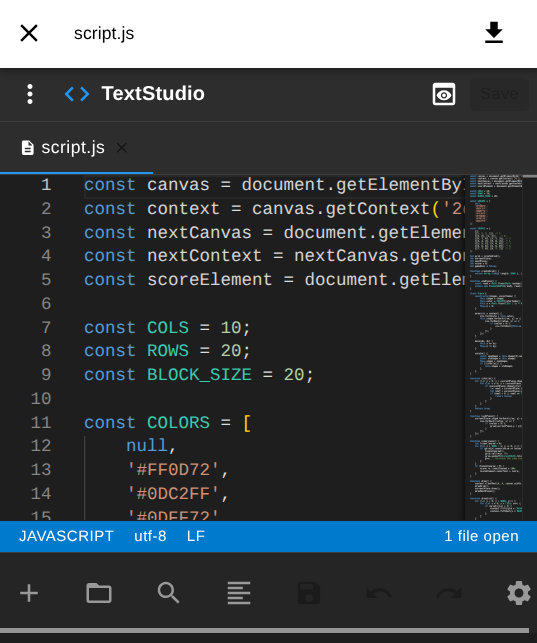
Files
Browse, create, and edit files in the browser — encrypted on your device before they are stored.
1. Open the File tab
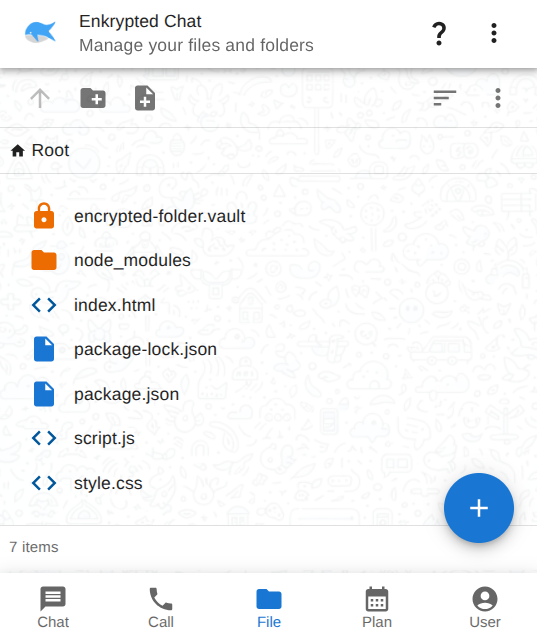
Tap File in the bottom navigation to manage your files and folders.
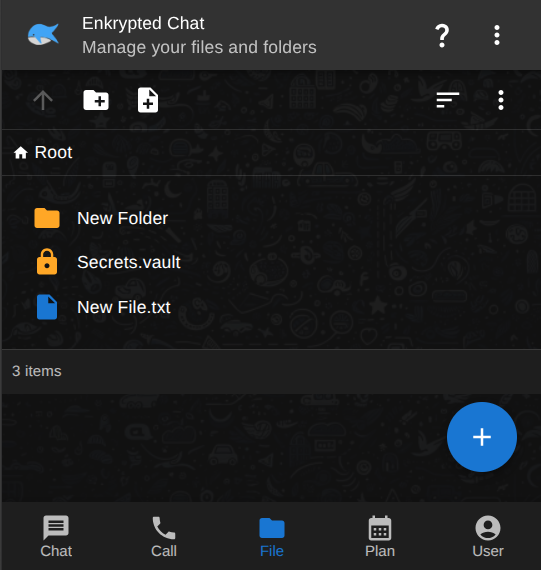
2. Default storage (OPFS)
By default, files stay in private browser storage (OPFS):
- No folder picker required
- Persists across sessions
- Not visible in your OS file manager
- Encrypted locally before persistence
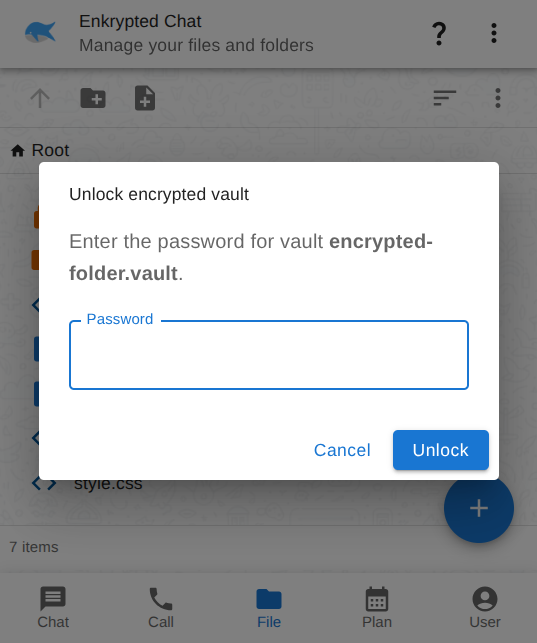
3. Mount a folder (optional)
To store files on disk, use the File System Access API:
- Create an empty folder on your computer first.
- Grant access when the app prompts you.
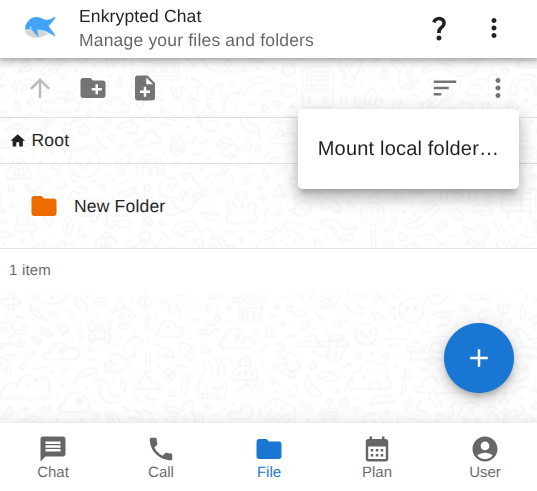
4. Browse and manage
Use the toolbar to navigate, create folders or files, and sort items. The file list works like a normal file manager.
5. Create files
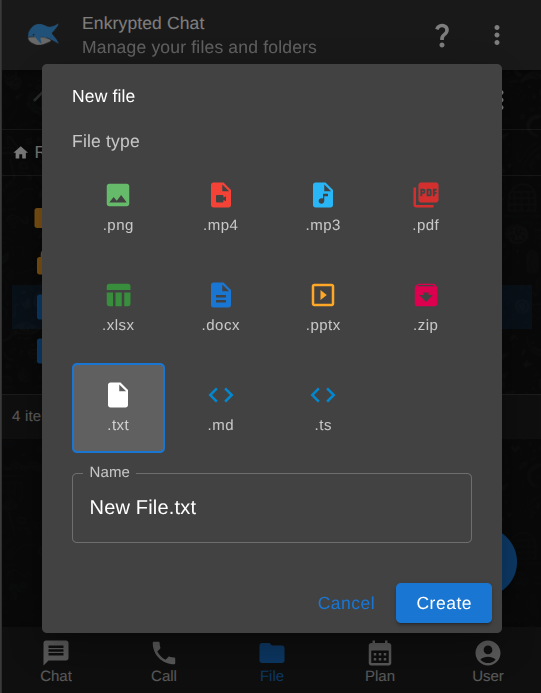
Tap + (or the new-file action) and choose a type — images, video, audio, PDF, Office documents, archives, plain text, markdown, code, and more. Enter a name and tap Create.
6. Preview and edit
Supported types preview in the browser; documents open for in-place editing. See Features — Files and documents.